


Create Better Marketing Videos With FlexClip

Video content can help a business explain a product, introduce a service, share a customer story, or turn a blog topic into something easier to watch. But creating a useful video does not require a complex production process every time.
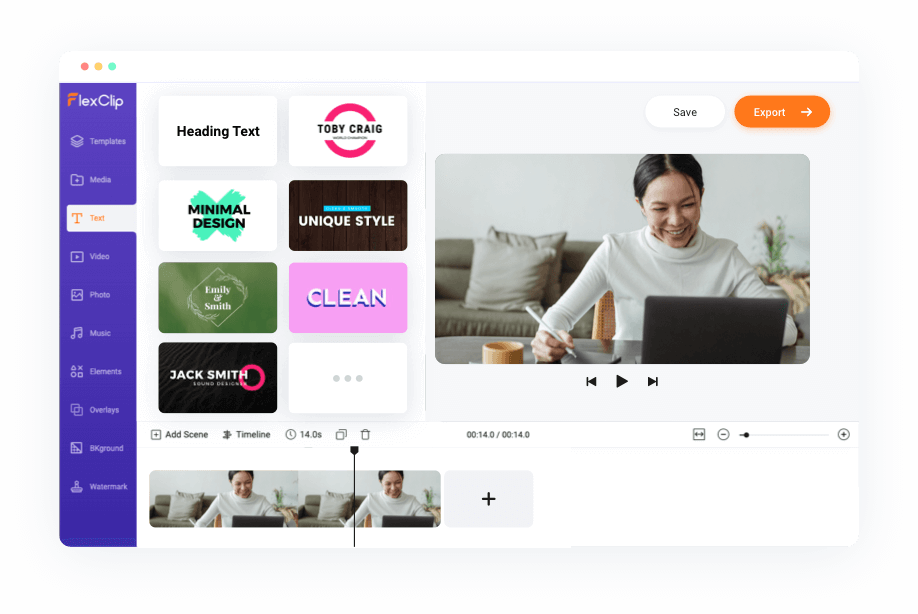
FlexClip is an online video creation platform with templates, timeline editing, media tools, text options, subtitles, audio features, and AI-assisted video tools. It can be useful for small businesses, creators, marketers, educators, and teams that want a browser-based workflow.
This guide explains how to plan a marketing video, choose the right editing approach, and avoid common mistakes before publishing content on a website, social platform, or email campaign.
Start With One Clear Video Goal
A video works best when it has one main job. Before choosing a template or uploading footage, decide what you want the viewer to understand, feel, or do after watching.
For example, a product introduction may need to explain a key benefit. A social clip may need to stop scrolling quickly. A tutorial may need to show one process step by step. A business video may need to build trust by showing the people, service, or result behind the brand.
| Video goal | Useful video format | What to plan |
|---|---|---|
| Introduce a product | Short product highlight video. | Show the product, key use case, and next step clearly. |
| Promote a service | Explainer or customer-focused video. | Describe the problem, solution, and contact action. |
| Share a blog topic | Educational social clip or slideshow. | Turn one article takeaway into a short visual sequence. |
| Build brand awareness | Brand story, behind-the-scenes, or team video. | Use a consistent tone, colors, and message. |
| Create a tutorial | Screen recording or step-by-step walkthrough. | Keep each step visible and easy to follow. |
Trying to explain too many ideas in one video can make the message feel unclear. Start with one goal, then create related clips later.
Choose a Template or Start From Scratch
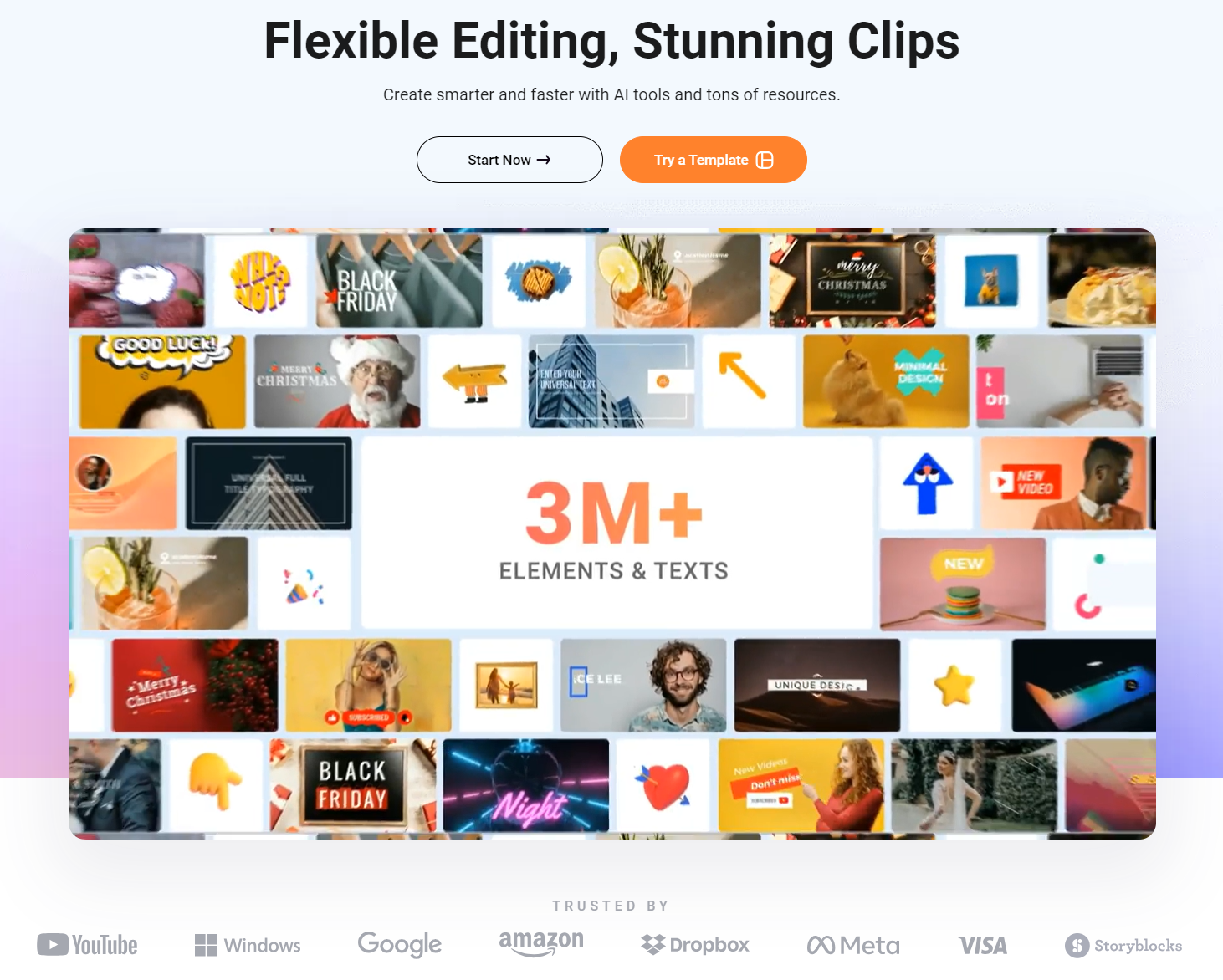
Templates can be useful when you need a fast starting point for a promotion, social post, tutorial, slideshow, event announcement, product video, or business update. They can save time because the structure, timing, and visual balance are already partly established.
Starting from scratch may be a better choice when you already have a clear brand style, custom footage, or a specific sequence that does not fit a template.
- Choose a template when you need a fast, structured starting point.
- Use a blank project when you need more control over layout and timing.
- Check the template aspect ratio before adding content.
- Replace placeholder text with short, readable messages.
- Use your own brand colors, logo, and product images where appropriate.
- Remove sections that do not support the final message.
A template should support your message, not force your message into an unrelated format.
Build the Video on a Simple Timeline
A timeline makes it easier to arrange clips, images, text, music, voiceover, transitions, and subtitles in a sequence that viewers can follow. For many short videos, a clear beginning, middle, and ending is enough.
Start by placing the most important message early. Viewers may not watch the whole video, especially on social platforms, so the opening should quickly explain what the content is about.
- Place the strongest visual or headline in the opening seconds.
- Add clips, screenshots, product images, or stock assets that support the message.
- Use short text overlays to highlight key points.
- Add voiceover, music, or sound only when it improves clarity.
- Use transitions sparingly so the video does not feel distracting.
- End with a clear call to action or next step.
For business content, simple editing is often more effective than a large number of effects. Viewers should understand the message without needing to decode the design.
Use Text, Subtitles, and Audio Carefully
Text and audio can make a video easier to understand, especially when viewers are watching without sound or scrolling quickly on a mobile device.
Keep on-screen text short
Use text to support the message, not repeat every spoken sentence. A short headline, feature point, statistic, or call to action is usually easier to read than a large paragraph.
Add subtitles when speech matters
Subtitles can help viewers follow a tutorial, explanation, product demo, or talking-head video. Review automatically generated subtitles carefully before publishing because names, product terms, and punctuation may need correction.
Use music as background support
Music should support the mood without overpowering spoken audio. Lower the volume when a voiceover, interview, or screen-recording explanation is the main focus.
Check voiceover quality
Whether you use recorded narration or text-to-speech, listen through the full video. Check pronunciation, pacing, pauses, and whether the voice matches the audience and message.
Always use media, music, footage, and images that you have permission to publish. Review licensing and usage conditions before using any asset in commercial content.
Use AI Tools as a Starting Point
FlexClip includes AI-assisted tools for tasks such as turning prompts, articles, or URLs into video concepts, generating subtitles, creating scripts, producing voiceovers, removing backgrounds, and helping with video production steps.
These tools can be useful when you need an outline, a first draft, a visual starting point, or a faster way to repurpose existing material. They should still be reviewed before publishing.
- Use AI video tools to create a starting draft, not a final unchecked result.
- Review generated text for accuracy, tone, and brand language.
- Check subtitles for names, product details, and technical terms.
- Review visual results for incorrect objects, text, or misleading details.
- Do not use AI content to create false endorsements, impersonations, or deceptive claims.
- Keep human review in the process when content represents a brand, product, or service.
AI can reduce repetitive work, but the final responsibility for accuracy and quality remains with the person publishing the video.
Export for the Platform Where the Video Will Appear
A video can look good inside the editor but perform poorly after publishing if the size, crop, title placement, or format does not suit the platform. Plan the final destination before exporting.
| Publishing area | Useful format approach | What to check |
|---|---|---|
| Website banner | Wide layout with a clear focal point. | Check page loading, readability, and mobile cropping. |
| Blog embed | Short explainer or article-supporting video. | Check thumbnail, captions, and page placement. | Square social post | Compact layout with readable headlines. | Check text size on mobile. |
| Vertical social video | Tall format for short-form viewing. | Keep important text away from interface overlays. |
| Email campaign | Short preview or animated visual leading to a landing page. | Check file size and link destination. |
Watch the exported file from start to finish before publishing. Check audio, subtitles, text timing, image quality, branding, links, and the final call to action.
Common Video Creation Mistakes
Most marketing videos do not fail because the editor is missing a feature. They fail because the video is unclear, too long, difficult to read, or built without considering where viewers will see it.
- Starting with a long introduction before explaining the topic.
- Adding too much text to each scene.
- Using small captions that are difficult to read on phones.
- Choosing effects that distract from the actual message.
- Publishing automated subtitles without checking them.
- Using unlicensed media, music, or graphics.
- Forgetting to test how the video looks on mobile.
- Trying to cover several unrelated messages in one short video.
A focused script, simple structure, and final review usually matter more than adding every available feature.
Final Thoughts
FlexClip can be useful for businesses and creators who want a browser-based way to make promotional videos, social clips, tutorials, slideshows, and branded visual content.
The strongest video workflow is not the one with the most effects. It is the one that helps you create a clear message, use appropriate media, edit efficiently, and publish content that fits the intended platform.
Use FlexClip to compare online video creation tools and review the current features before choosing a plan.
FAQ
What is FlexClip used for?
FlexClip is used for browser-based video creation, including templates, timeline editing, text overlays, subtitles, music, screen recording, social media videos, and AI-assisted video tools.
Can I make marketing videos with FlexClip?
Yes. FlexClip can be used for product highlights, service explainers, social media videos, tutorials, brand stories, and other business-focused video content.
Should I use a template or start from scratch?
Use a template when you need a fast structure and start from scratch when you need more control over custom footage, timing, and brand layout.
Can I add subtitles to a FlexClip video?
FlexClip includes subtitle tools, including AI-assisted subtitle generation. Review all subtitle text before publishing.
What should I check before exporting a video?
Check the aspect ratio, text size, subtitle timing, audio levels, image quality, licensing rights, brand details, and how the video looks on the final platform.
We only recommend tools we've tested and trust. This post may include affiliate links, meaning we may earn a commission if you choose to purchase - at no extra cost to you.


