


Build A Better Website With Nicepage

Creating a website does not always require starting with a blank code editor. For many small businesses, creators, agencies, and portfolio owners, a visual builder can make it easier to turn an idea into a usable page structure.
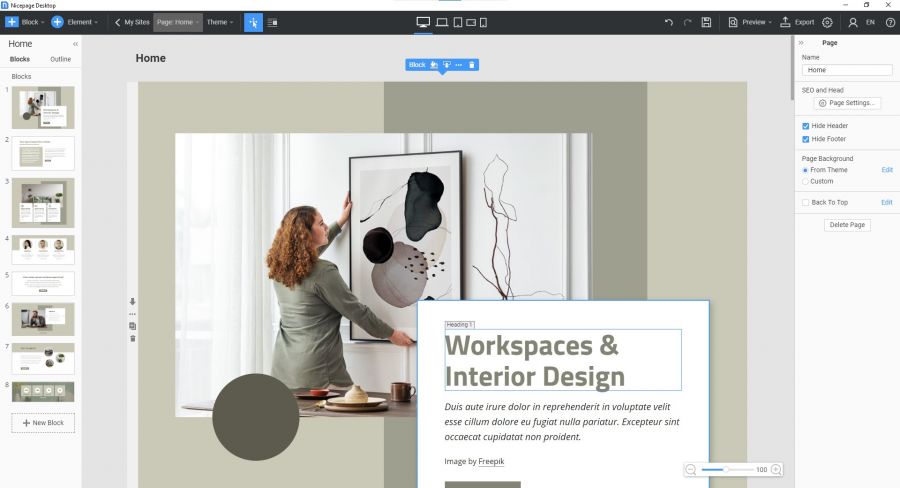
Nicepage is a visual website builder that can be used online, through desktop apps, or with WordPress and Joomla. It can help users design pages, adjust layouts, work with templates, and prepare websites for different publishing workflows.
This guide explains how to plan a Nicepage project, choose the right starting point, test responsive layouts, and avoid common website-builder mistakes before publishing.
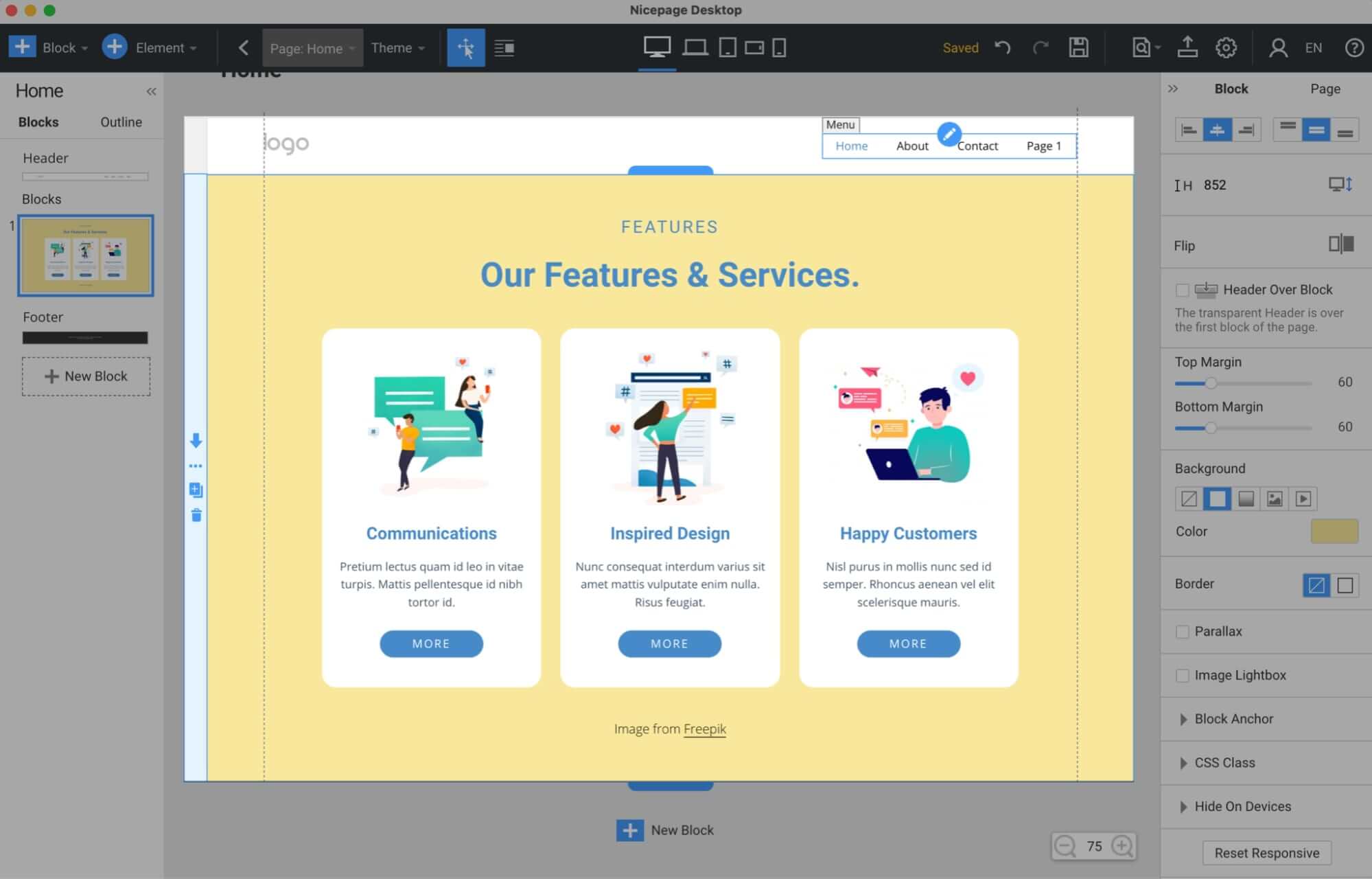
Start With the Job Your Website Needs to Do
Before choosing a template or adding a hero image, decide what visitors should do when they arrive. A portfolio site, service website, online store, blog, landing page, restaurant site, or agency website may all need different page structures.
A clear goal helps you avoid building pages that look polished but do not guide visitors toward a useful next step.
- For service businesses, focus on trust, clear offers, and contact options.
- For portfolios, focus on work samples, case studies, and a simple introduction.
- For blogs, focus on readable article layouts and category navigation.
- For online stores, focus on product details, checkout flow, and customer support information.
- For landing pages, focus on one main message and one primary call to action.
Write down the main action you want visitors to take before you start designing. This can be contacting you, viewing your work, reading content, requesting a quote, signing up, or purchasing a product.
Choose the Right Nicepage Workflow
Nicepage can fit different website workflows, so it helps to decide how and where you want the finished site to live before spending too much time designing.
| Workflow | Best for | What to check |
|---|---|---|
| Nicepage Online | Users who want to build and manage projects in a browser. | Check publishing options, account access, and project workflow. |
| Windows or macOS app | Designers who prefer a desktop workspace or offline project work. | Review export options and how projects will be backed up. |
| WordPress plugin | WordPress site owners who want visual page and theme editing. | Check theme compatibility, plugin overlap, and update practices. |
| Joomla extension | Joomla users who want a visual site-building workflow. | Review version compatibility and installation steps. |
| HTML export | Users who want files for separate hosting or custom deployment. | Check hosting access, FTP workflow, and how future edits will be managed. |
The right workflow is usually the one that matches your current platform and how comfortable you are with publishing, updates, and maintenance.
Use Templates as a Starting Point, Not a Final Website
Templates can save time, especially when you need a page structure quickly. But a template should be treated as a starting layout, not a finished business identity.
Change the content before focusing on small visual details. Replace generic headlines, placeholder images, sample testimonials, and default calls to action with information that reflects your own business or project.
Start with the right page structure
Choose a layout that already resembles the kind of site you need. A restaurant template may have useful menu and location sections, while a service-business template may include stronger contact and testimonial areas.
Replace generic copy early
Visitors should quickly understand what you do, who you help, and what makes your offer useful. Update the main heading, subheading, service descriptions, and buttons before spending time on decorative details.
Keep sections focused
Each section should have a clear job. Avoid adding too many blocks simply because they are available in the builder. A shorter page with clear information can be more effective than a long page with repeated messages.

Check Mobile Layout Before Publishing
A desktop design can look excellent while still becoming difficult to use on a phone. Since many visitors browse from mobile devices, responsive checks should be part of the design process rather than the final step.
- Preview the website on desktop, tablet, and mobile views.
- Check whether headings wrap in a readable way.
- Make sure buttons are easy to tap on smaller screens.
- Review image crops so important details are not cut off.
- Keep navigation simple and easy to open on mobile.
- Check spacing between sections so the layout does not feel crowded.
- Test forms, menus, sliders, and embedded content on a real phone when possible.
Responsive editing is not only about shrinking a desktop layout. It is about making sure visitors can understand and use the page comfortably on different screen sizes.
Plan Publishing and Export Before the Final Design
Publishing should be part of the project plan from the beginning. A website can be published through a hosted workflow or prepared for export, depending on the platform and hosting arrangement you choose.
Before going live, confirm who owns the domain, where the website will be hosted, how updates will be made, and where you will keep backups of the project and exported files.
- Decide whether the site will be published online, exported as HTML, or used with WordPress or Joomla.
- Prepare your domain and hosting information before the launch date.
- Check page titles, descriptions, contact details, and navigation links.
- Test all contact forms and buttons.
- Review the website on desktop and mobile devices.
- Keep a backup of the Nicepage project and any exported files.
- Document how future updates will be handled.
This makes it easier to maintain the site after launch instead of treating publication as the end of the project.
Avoid Common Website Builder Mistakes
A visual builder can make design faster, but it cannot automatically make the website clear, trustworthy, or easy to use. The best results come from combining design flexibility with practical content decisions.
- Using too many fonts, colors, animations, or button styles.
- Keeping placeholder copy after the site goes live.
- Making every section compete for attention.
- Ignoring mobile layout until the final stage.
- Adding large images without checking loading behavior.
- Using unclear button text such as “Click Here” everywhere.
- Publishing without testing contact forms, menus, and links.
- Forgetting to save a project backup before major design changes.
Simple navigation, clear messages, and consistent design choices often matter more than adding every available visual effect.
A Practical Nicepage Project Checklist
Use this checklist before building or publishing a site with Nicepage. It can help you keep the project focused from the first template choice to the final launch.
- Define the primary goal of the website.
- Choose the workflow that fits your platform: online, desktop, WordPress, Joomla, or HTML.
- Select a template that matches your site structure.
- Replace sample content with your own brand message and details.
- Check desktop, tablet, and mobile layouts.
- Test menus, forms, buttons, embedded media, and outbound links.
- Prepare publishing, domain, hosting, and backup details.
- Review current Nicepage plan features, support, export options, and renewal terms before upgrading.
This approach can help you build a website that is not only visually appealing but also easier for visitors to understand and use.
Final Thoughts
Nicepage can be useful for creators, small businesses, agencies, and website owners who want a visual way to build responsive pages, themes, and website layouts across several publishing workflows.
The strongest website is not always the one with the most sections or effects. It is the one that gives visitors clear information, works well on mobile, and supports the action you want them to take.
Use Nicepage to compare visual website-building workflows and review the current platform details before choosing a plan.
FAQ
What is Nicepage used for?
Nicepage is used for visual website creation, page design, theme building, template editing, and responsive website workflows for HTML, WordPress, Joomla, desktop, and online projects.
Can I use Nicepage with WordPress?
Nicepage offers a WordPress workflow that can be used for visual editing and exporting website-related content. Check current plugin compatibility and installation details before starting.
Can Nicepage export an HTML website?
Nicepage supports HTML export options. Review the current export documentation and make sure you understand how files will be uploaded, hosted, and maintained.
Should I start from a template or a blank page?
A template can save time when it matches your website goal. A blank page may be better when you already have a clear layout and content plan.
What should I test before publishing a Nicepage website?
Test page layout, mobile responsiveness, menus, forms, buttons, images, links, contact details, and the publishing setup before making the site public.
We only recommend tools we've tested and trust. This post may include affiliate links, meaning we may earn a commission if you choose to purchase - at no extra cost to you.


