


Makera Desktop CNC Guide For New Makers

Desktop CNC sounds exciting until a beginner starts asking practical questions. Which machine is right for a first workshop? What materials can it handle? Do you need CAM software? How much space, setup, and safety planning should come before the first cut?
Makera is built for people who want CNC machining to feel more approachable without giving up serious maker capability. Its product lineup includes desktop CNC machines, add-ons, CNC bits, materials, accessories, software, learning resources, and support content for users at different skill levels.
For new makers, the main benefit is not only the machine itself. It is the surrounding ecosystem that helps users move from idea to toolpath, from toolpath to material, and from material to finished part.
This guide explains how Makera can fit into a maker workflow, what to compare before choosing a machine, and how beginners can plan their first CNC projects more confidently.

Why Desktop CNC Is Different From 3D Printing
Many makers discover CNC after starting with 3D printing or laser cutting. The mindset is similar because all three turn digital designs into physical objects, but CNC machining works differently.
Instead of adding material layer by layer, CNC removes material with cutting bits. That makes setup, material choice, fixturing, toolpaths, dust, and safety much more important.
CNC is about controlled material removal
A CNC machine cuts away material from a block, sheet, or blank. This can produce strong, accurate parts in materials such as wood, plastics, aluminum, brass, copper, acrylic, PCB boards, and other compatible stock depending on the machine and setup.
That makes CNC useful when a project needs a functional part, clean edge, precise pocket, engraved detail, or prototype that feels closer to a final product.
Planning matters before cutting
CNC is less forgiving than a simple craft tool. The user needs to know the material, bit type, workholding method, cutting depth, feed rate, and toolpath before pressing start.
This is why a beginner-friendly ecosystem matters. A clear path from design to CAM to machine control can reduce trial-and-error frustration.
Small machines can still do serious work
Desktop CNC is attractive because it brings machining into home workshops, classrooms, labs, and small business spaces. Users do not need a full industrial shop to learn CNC basics or produce small parts.
The key is choosing a machine that matches the type of work you actually want to make.
What Makera Offers Makers
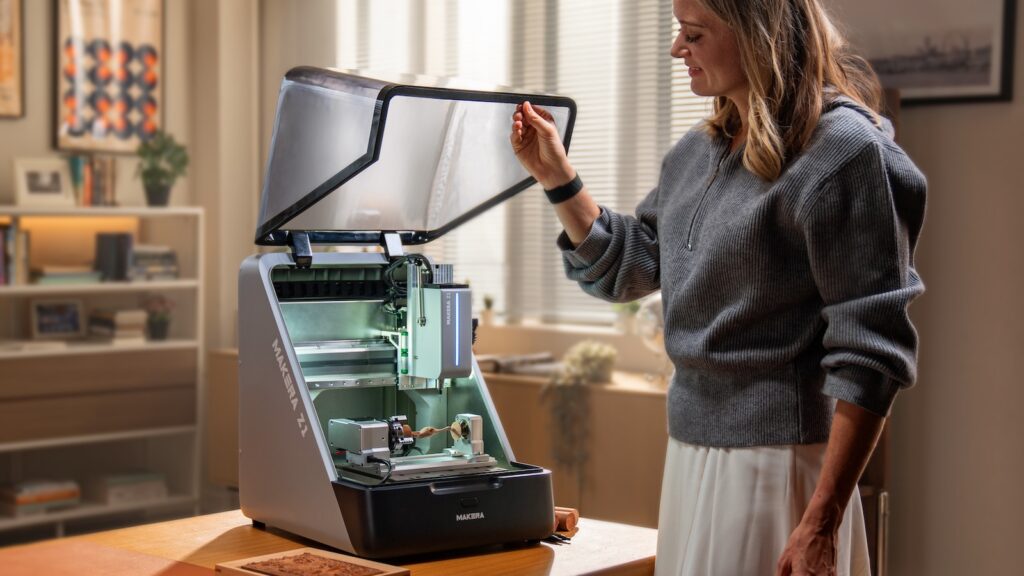
Makera’s official site organizes its product range around desktop CNC machines, including Carvera, Carvera Air, and the Makera Z1 pre-order. It also lists add-ons, CNC bits, materials, accessories, spare parts, software, applications, and learning resources.
This structure is helpful because CNC success depends on more than the machine. Bits, materials, software, and training all affect the final result.
Desktop CNC machines
Makera positions Carvera as a smart desktop CNC machine, Carvera Air as a maker-focused CNC option, and Makera Z1 as an entry-level desktop CNC. These product tiers give users different starting points depending on budget, experience, and project needs.
A beginner should compare workspace size, supported materials, add-on compatibility, software workflow, dust management, and available learning resources before choosing.
Add-ons and accessories
Makera lists add-ons such as dust collectors, fourth-axis modules, laser modules, probes, beds, vises, and other accessories. These can expand what a machine can do or make setup easier.
However, not every beginner needs every add-on immediately. Start with the projects you plan to make first, then add accessories when the workflow requires them.
Bits and materials
CNC bits and materials matter because the wrong cutter or stock can create poor results. Makera’s catalog includes bit types such as spiral, engraving, ball nose, drill, thread milling, chamfer, and specialty bits, along with materials such as aluminum, PCB boards, plastics, Delrin, acrylic, brass, copper, carbon fiber, and more.
For beginners, buying a small starter set of common materials is usually better than jumping into difficult cuts too early.
How to Choose Between Makera Machines
The right Makera machine depends on your project type, not only your skill level. A hobby user making tags and small parts may need a different setup from a school lab, product designer, or small business making repeatable parts.
Use the table below as a starting point before comparing exact specs.
| User type | Likely priority | What to compare |
|---|---|---|
| Beginner maker | Simple setup and learning curve | Z1, tutorials, starter materials |
| Hobby DIY user | Creative flexibility | Carvera Air, add-ons, bit options |
| Product designer | Prototype accuracy | Material support, CAM workflow, workholding |
| Small business | Repeatability and speed | Machine capability, dust control, maintenance |
| Education lab | Learning support and safety | Software, manuals, examples, community |
Choose Z1 for entry-level CNC learning
Makera describes the Z1 as a go-to entry-level desktop CNC. This makes it a logical option for people who want to learn CNC basics without immediately starting with the most advanced setup.
It may fit hobby users, students, makerspaces, and first-time CNC owners who want a more guided path into machining.
Choose Carvera Air for maker flexibility
Carvera Air is positioned as a CNC revolution for makers. It may be a stronger fit for users who already know they want to explore more projects, add-ons, or regular CNC work.
Before choosing, compare the machine with your expected materials, project size, and upgrade path.
Choose Carvera for more advanced desktop CNC needs
Carvera is positioned as Makera’s ultimate smart desktop CNC. It may make sense for users who want a more capable desktop setup for prototyping, education, small business, and more demanding maker workflows.
For this level, buyers should review exact specs, workspace, tool workflow, maintenance, and support resources carefully.
How Makera Software Fits the Workflow
CNC software can be intimidating for beginners because it connects design, toolpaths, and machine motion. Makera helps simplify this by offering its own software ecosystem and supporting other CAM tools.
The official site lists Makera Controller and Makera CAM, along with support for other software such as Fusion and VCarve.
Makera Controller helps run the machine
Makera Controller is described as intuitive control software designed for Carvera and Carvera Air, available across platforms such as Windows, Mac, and Android.
This matters because machine control should feel clear during setup, job start, monitoring, and basic operation.
Makera CAM supports toolpath creation
Makera CAM is described as an easy-to-learn CAM software solution for 2D, 3D, fourth-axis, and laser projects for Carvera and Carvera Air.
For beginners, CAM is one of the most important learning steps. It turns a design into instructions the CNC machine can follow.
Other CAM options give room to grow
Makera also notes that Fusion and VCarve are among supported CAM options. This gives more advanced users flexibility if they already have a preferred workflow.
A beginner can start simple, then expand into more advanced software as project needs grow.

Beginner Projects That Make Sense
New CNC users should start with projects that teach core skills without becoming too risky. The goal is to learn material setup, workholding, bit selection, toolpath basics, and finishing.
Simple projects also help users understand what the machine does well before moving into harder materials or tighter tolerances.
- Engraved name plates or labels.
- Simple wooden signs.
- Custom tags or small decorative parts.
- PCB practice projects.
- Acrylic templates or organizers.
- Small aluminum test parts after learning easier materials.
- Prototype brackets or simple housings.
Start with forgiving materials
Wood, MDF, plastic, or acrylic practice pieces can be easier for early learning than metal. They allow users to test feeds, speeds, clamping, and bit behavior with less pressure.
Once the workflow feels familiar, users can move toward aluminum, brass, or other more demanding materials.
Make test cuts before final parts
A test cut teaches more than a perfect tutorial. It helps users see chip quality, edge finish, machine sound, and whether the chosen bit and material are behaving correctly.
Use small tests before cutting expensive stock.
A Practical Makera Buying Checklist
Before buying a desktop CNC, check the full workflow. The machine is the core purchase, but the surrounding tools and setup decide how easy it is to use.
- Define the projects you want to make in the next three months.
- List the materials you plan to cut most often.
- Compare machine workspace and project size.
- Check compatible add-ons, bits, and accessories.
- Review CAM and control software options.
- Plan dust collection, safety glasses, and workspace ventilation.
- Set aside budget for starter materials and replacement bits.
- Read manuals, examples, and beginner resources before the first cut.
Do not spend the whole budget on the machine alone
CNC users also need bits, stock material, workholding, dust management, safety equipment, and sometimes add-ons. A balanced starter budget makes the first month easier.
Leaving room for accessories can prevent delays after the machine arrives.
Who Should Consider Makera
Makera is a good fit for makers who want a desktop CNC ecosystem rather than a machine-only purchase. It is especially useful for people who want hardware, software, materials, bits, learning resources, and support to connect more clearly.
The brand may fit several types of users.
- New makers learning CNC for the first time.
- Hobby DIY users who want to move beyond 3D printing or laser cutting.
- Product designers creating functional prototypes.
- Educators building hands-on machining lessons.
- Small businesses making custom parts or engraved products.
- Makerspaces that need a compact CNC learning platform.
Ready to move from digital designs to real CNC projects with a clearer starter path?
Final Thoughts
Makera is worth considering for users who want to learn, build, and prototype with desktop CNC technology. Its ecosystem includes machines, add-ons, CNC bits, materials, software, support, and learning resources, which can make the CNC journey feel more organized.
The best way to choose is to begin with the projects you actually want to make. Then compare machine level, material needs, software workflow, workspace, add-ons, and support resources.
Use Makera to start a more practical desktop CNC workflow if you want a maker-focused setup for hobby projects, education, prototyping, or small business production.
FAQ
What is Makera best known for?
Makera is best known for desktop CNC machines and a maker ecosystem that includes add-ons, CNC bits, materials, software, support, and learning resources.
Is Makera good for beginners?
Makera can be useful for beginners because the Z1 is positioned as an entry-level desktop CNC and the brand provides software, manuals, examples, and learning resources.
What materials can I use with Makera machines?
Material support depends on the machine, bit, and setup. Makera’s catalog includes materials such as aluminum, PCB boards, plastics, acrylic, Delrin, brass, copper, and more.
Do I need CAM software for CNC?
Yes. CAM software creates toolpaths for the machine. Makera offers Makera CAM and also lists other supported options such as Fusion and VCarve.
We only recommend tools we've tested and trust. This post may include affiliate links, meaning we may earn a commission if you choose to purchase - at no extra cost to you.


