


EaseUS Data Recovery Review: Can It Really Recover Lost Files?

If you’re reading this, you probably lost something important—and you want an answer that’s practical, not hype. Maybe you deleted a folder, formatted a drive by mistake, or your USB/SD card suddenly became unreadable. In moments like that, data recovery software feels like the fastest path to undoing a painful mistake.
This review explains how EaseUS Data Recovery works in plain English, what it tends to do well, the limitations that matter (especially with the free version), and when you should consider a different approach.
Common Data Loss Scenarios (And What They Usually Mean)
Data recovery depends heavily on what happened after the data was lost. The same software can perform very differently depending on whether files were overwritten, whether the device is physically damaged, and whether the file system is corrupted.
Accidental deletion
This is the most common scenario: you delete files, empty the recycle bin, or remove a folder from an external drive. In many cases, “deleted” doesn’t mean “gone.” Often, the system simply marks that space as available—until new data overwrites it.
Good news: Recovery chances can be decent if you act quickly.
Risk: The more you keep using the drive, the more likely those file fragments get overwritten.
Formatting a drive (HDD/SSD/external drive)
Formatting can feel final, but it often isn’t—especially with a quick format. The drive’s index gets rebuilt, but some file data may still exist underneath.
Good news: Many formatted drives still contain recoverable data in the short term.
Risk: If you formatted and then copied new files onto the drive, recovery becomes much harder.
USB/SD card errors and corruption
Portable storage can fail in frustrating ways: “You need to format the disk,” unreadable partitions, sudden disconnections, or files that appear as 0KB. These issues are common with older flash drives, frequent unplugging, or unstable card readers.
Good news: If it’s corruption (not physical failure), software recovery can help.
Risk: If the device is physically failing, it may get worse with repeated scans.
How EaseUS Data Recovery Works (Simple Explanation)
Data recovery tools don’t “magically rebuild” files out of thin air. They search for recoverable traces and reconstruct what can still be pieced together. EaseUS generally uses two approaches that matter for real users:
Quick scan (find what’s easy to find)
A quick scan typically checks common file system records—like directory entries and recently deleted data markers. It’s faster and can surface recently deleted items quickly.
Deep scan (search for file signatures)
Deep scans dig harder. Instead of relying only on file system indexes, the tool looks for file patterns/signatures on the storage device. This can find more data (especially after formatting), but it usually takes longer and may produce a lot of results to sort through.
In simple terms: Quick scan is speed-first. Deep scan is thoroughness-first. EaseUS surfaces both because different loss scenarios require different scanning depth.
What EaseUS Does Well
When people recommend data recovery software, they usually recommend it for one of two reasons: it’s easy enough to use under stress, and it can surface recoverable files without complicated steps. EaseUS is popular largely because it focuses on both.
UI that non-technical users can navigate
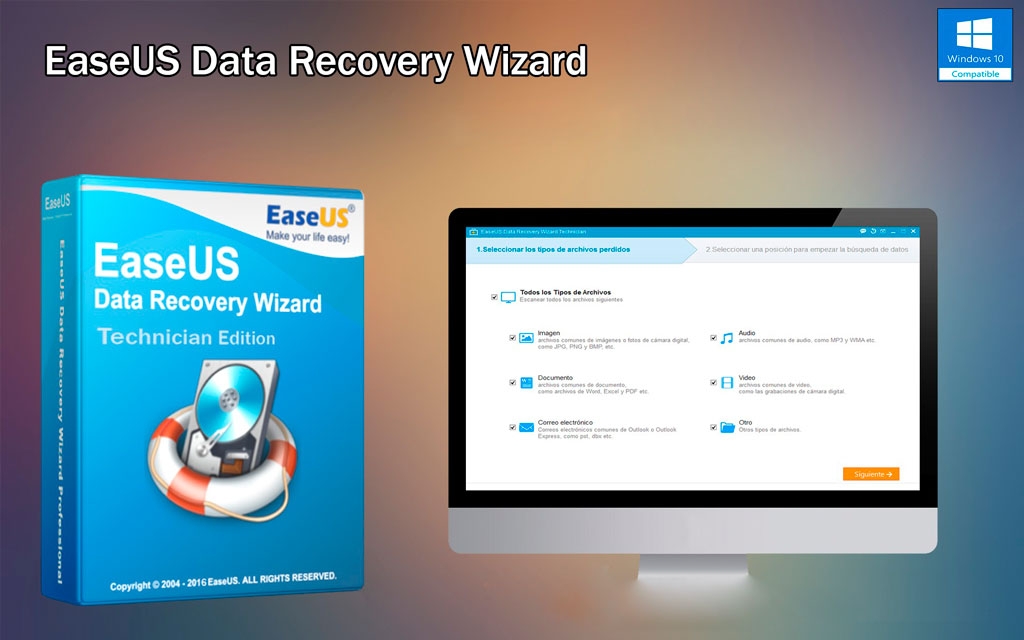
Data loss puts people in a panic. In that moment, “advanced controls” are not helpful—clarity is. EaseUS leans into a guided flow: select a drive, scan, preview, recover. That simplicity is a real advantage for anyone who isn’t comfortable with technical tools.
Supports many file types (and previews help decision-making)
In recovery, seeing a preview or identifying file types can reduce guesswork. Many users care about practical outcomes: “Can I get my documents/photos/videos back?” Broad file-type support matters because people don’t lose one format—they lose mixed folders.
Quick scan vs deep scan is a useful mental model
EaseUS makes it obvious that you have two levels of scanning. That helps users avoid wasting time: you can try quick scan first for a fast win, then move to deep scan if needed. For high-intent searches (you lost files today), that workflow matters.
If you’re comparing options, a fast way to evaluate is to run a scan and see what it finds—then decide whether upgrading is worth it based on what’s recoverable. That’s one reason EaseUS converts well: people can often see potential results before committing.
Limits You Need to Know (So You Don’t Get Burned)
A fair review must be honest: no software can guarantee recovery in every situation. EaseUS has real strengths, but the outcome depends on the device and what happened after the loss.
The free version is limited
Many people discover recovery tools via the free version. That can be helpful for evaluation, but limitations often apply (for example, how much data you can recover without upgrading). The key is to treat free as a diagnostic step: use it to scan and preview, then decide if paying is justified.
Not all files are recoverable
Three common reasons recovery fails:
- Overwriting: New data replaced the space where old data lived.
- Encryption/secure erase: Some systems make recovery far harder.
- Physical damage: If the drive is failing mechanically, software may not be enough.
Deep scan results can be noisy
Deep scanning may return lots of fragments or unnamed files. That’s not necessarily a flaw—it’s the reality of signature-based recovery. But it means you may need time to filter, preview, and identify what matters.
How to Maximize Your Chance of Recovery
If you want the best shot, your behavior in the first hour matters more than most people realize.
Stop using the affected drive
Every download, install, or file copy increases the chance of overwriting recoverable data. If the lost files were on your internal drive, avoid installing recovery software onto that same drive when possible.
Recover to a different drive
When you restore recovered files, save them to a separate storage location (external drive or another disk). Recovering to the same drive can overwrite other recoverable items.
If the device is failing, be cautious with repeated scans
If you hear clicking sounds, frequent disconnections, or extreme slowdowns, the device may be physically failing. In those cases, repeated scans can stress the hardware. Consider professional help if the data is truly irreplaceable.
When EaseUS Is Worth Using
EaseUS tends to be a practical choice in situations where you need a solution fast and you want a tool that doesn’t require technical skill.
It’s a strong fit when…
- You deleted files recently and want a quick recovery attempt
- You formatted a drive (especially a quick format) and haven’t written much new data
- Your USB/SD card is corrupted but still recognized by the computer
- You want a guided, non-intimidating workflow
In these scenarios, scanning with EaseUS can be a rational first move: you either recover what you need or quickly learn what’s realistically possible.

When You Should Look for Another Solution
There are cases where software recovery is not the best next step.
Consider alternatives when…
- The drive appears physically damaged (clicking, not detected, constant disconnects)
- The data is extremely high-value (legal, medical, critical business archives) and you can’t risk worsening the drive
- You used secure erase/encryption that makes software recovery unlikely
- You already wrote lots of new data after the loss (high overwrite risk)
In those cases, professional recovery services or specialized approaches may be safer—especially if the data is irreplaceable.


